evidence
MLE Evidence Project
First Time Setup on Windows
IDE and Framework Downloads
- VS Code
- VS Code is our preffered IDE for Evidence development because it has a built in Evidence extension available to install and native git support.
- VS Code should be used for all modifications to our Evidence repository.
- dbeaver
- dbeaver’s Community Edition is our preferred SQL IDE because it is open source and widely utilized in professional environments. It makes connecting to databases and building SQL queries much easier than it is in VS Code.
- If you’re working directly with the SprocketDB or MLEDB databases, you’ll need to use dbeaver (or another IDE) to connect directly to our databases.
- Check the “Associate .sql files” option when installing
- Git
- Git is the basis of all version control, allowing multiple developers to work on the same project at once.
- If downloading on Windows, make sure to select the “Add to PATH” option when installing.
- Node
- Node.js is a cross-platform JavaScript runtime environment that allows developers to execute JavaScript code outside of a web browser.
- This will allow VSCode to run a local version of Evidence from your terminal.
Evidence Setup
- Clone the Evidence Repository
- In VS Code, hit
Ctrl+Shift+Pand typeGit: Clone. Hit enter or click on the matching result. - Paste the Evidence repo url into the text box and hit enter: https://github.com/Minor-League-Esports/evidence.git
- Choose a destination folder to clone the repository into (usually people will just put it in their Documents folder).
- A terminal window should open up saying the repo was successfully cloned. VS Code may ask if you’d like to open up the repository, if so go ahead!
- In VS Code, hit
- Download the Evidence VS Code Extension
- Go to the Extensions menu of VS Code (located on the left toolbar, can just use
Ctrl+Shift+Xif you can’t find it). - Search for “Evidence” in the search box.
- Click Install for the “Evidence” and “DuckDB Driver for SQLTools” extensions.
- Go to the Extensions menu of VS Code (located on the left toolbar, can just use
- Start Evidence Locally
- You should now see a button on VS Code’s bottom toolbar next to your branch management indicator that says “Start Evidence”.
- If you don’t see this, try closing VS Code and then re-opening it with the folder that the repo is contained in.
- Click the “Start Evidence” button.
- If you get an error in the terminal that opens, try running the following commands one at a time in the same terminal:
npm installnpm run sourcesnpm exec evidence dev -- --open
- The live testing/look at your changes should open in your browser after that last command.
- Note that you wont need to do this again in the future, your “Start Evidence” should now work and open up in your browser as expected!
- If you get an error in the terminal that opens, try running the following commands one at a time in the same terminal:
- You should now see a button on VS Code’s bottom toolbar next to your branch management indicator that says “Start Evidence”.
- Build Evidence Locally
- There are a few things you will need to do in your terminal before creating a PR.
- To ensure things work properly run:
npm install cross-env --save-devin your terminal (this only needs to be run once).
- To ensure things work properly run:
- To ensure your changes don’t break the build you will need to build evidence locally and check to make sure everything works
npm run build
- This should build Evidence locally, but note it will take some time (~30 minutes or so). If your build fails locally it will fail in prod. If you need help figuring out why your build is failing reach out to OwnerOfTheWhiteSedan or Ol Dirty Dirty.
- If your local build is successful feel free to create a PR for the team to look at and approve.
- There are a few things you will need to do in your terminal before creating a PR.
Process Flow for Submitting Changes to the Evidence Repository
- Before you make any changes to our Evidence repository, create a new branch via Git with the following format:
name/short_description_of_changes- You can do this easily within VS Code by selecting the branch manager on the left of VS Code’s bottom toolbar (it probably says “master” if this is your first time), then selecting “Create new branch…” on the pop-up at the top-center of VS Code.
- Click the “Start Evidence” button on the bottom toolbar of VS Code, you’ll see a local version of our Evidence site open in your browser which will update with a live preview of the changes you’re making each time you save your file.
- Make your changes, ensuring that they look the way you expect in the browser window.
- Commit your changes to the branch you made and push the branch/commit to the remote repository.
- Go to the remote respository (https://github.com/Minor-League-Esports/evidence/) and create a Pull Request to merge your changes into the the
mainbranch of code (this branch is what’s used to actually construct the published MLE Evidence website and will be visible to all). - Notify OwnerOfTheWhiteSedan to review your PR and approve it or provide feedback with requested changes! Once it’s approved, it can be merged and seen by the MLE community!
Learning More
- Evidence
- Git
- SQL
Working with dbeaver
This section assumes you’re using dbeaver to access data and run queries.
Using Sprocket Public Datasets in dbeaver
If you want to replicate using the Sprocket Public Datasets (like Evidence does) but in dbeaver in order to take advantage of it’s features, you can achieve this by following these steps:
- In dbeaver, create a new DuckDB database connection
- In the connection details, type
:memory:in thePath:field and then click theTest Connection...button on the bottom left of the connection settings box - The test should be successful, so you can click okay and close the connection settings!
- Open the
Create All Sprocket Datasets.sqlfile in the root directory of this repo as a dbeaver script - Click “Run Script” within dbeaver to create all of the Sprocket Public Datasets as temp tables stored in your local memory
- From there, you can make a new script and reference the generated tables using queries such as the below, with your table name matching the name of a temp table generated by the script:
 SELECT *
 FROM players
Connecting to SprocketDB or MLEDB Directly via dbeaver
If you want to work with the raw SprocketDB or MLEDB database data (to help with Sprocket datasets for example)
- Work with OwnerOfTheWhiteSedan and/or Nigel Thornbrake to get access to the Sprocket repository.
- Create a classic style GitHub Token from this link and give it simply the
read:orgscope (as seen in the below screenshot)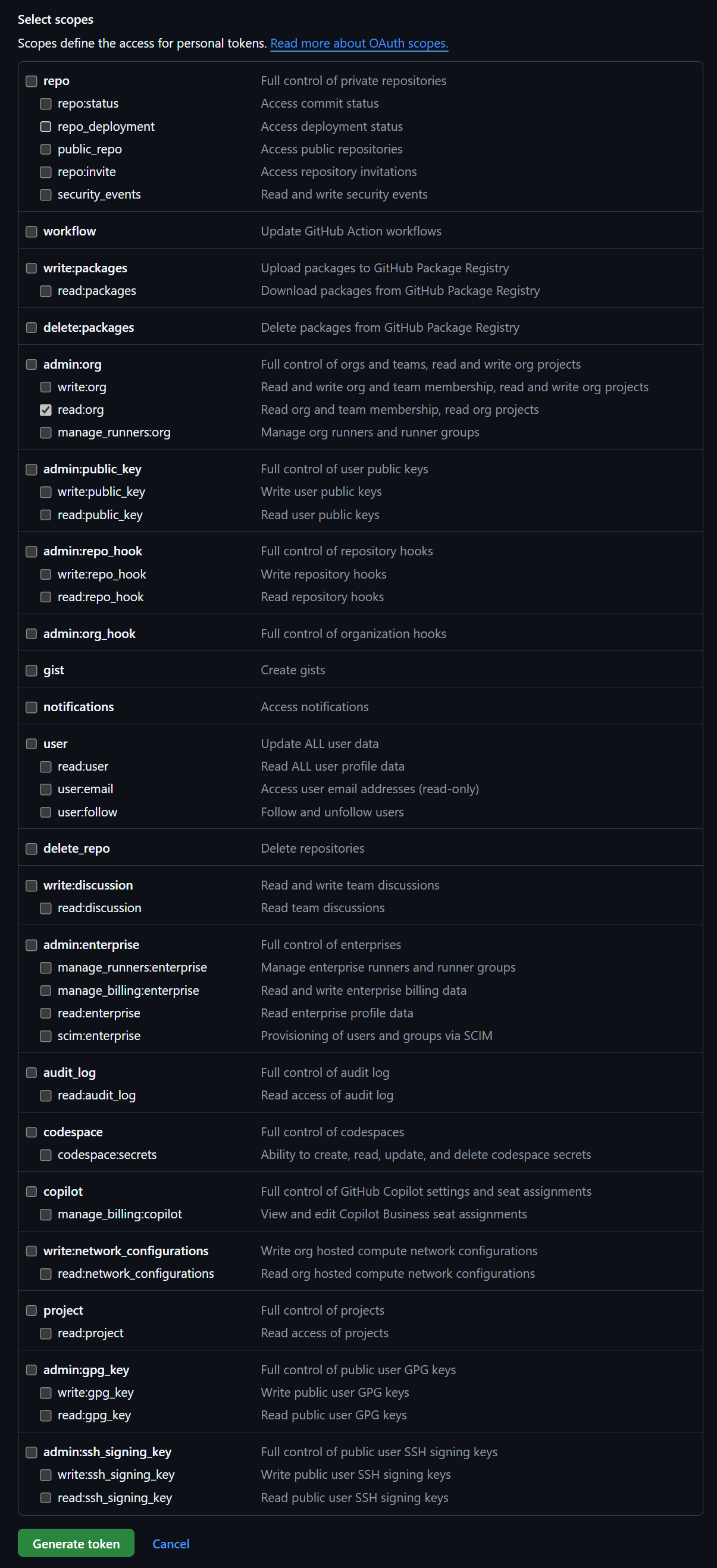
- Once created, save the special text string somewhere you wont lose it. Then, head to the Sprocket Vault site and select the
GitHubmethod of sign in. Use the token string provided and click “Sign In”. - From here, select
database/and inputdata_science_mainas the “Role to use”. - If successful, this should present you with with a username and password for accessing SprocketDB! Save these somewhere useful, but note that they will only be valid for 1 month. Each month you’ll need to come generate new credentials from the Vault.
- Within dbeaver, create a new Postgres database connection using the following credentials:
- Host:
db.spr.ocket.cloud - Port:
30000 - Database:
sprocket_main - Username: provided by Vault
- Password: provided by Vault
- Host:
- Click the “Test Connection…” button and, if successful, enjoy writing SQL using all of the raw data available to MLE!